Shopify Theme Customisation
Integrating a new Shopify Theme into your Store
So, You found a brand-new theme and now it’s time to install it and integrate it into your website.
Steps to take
- login to your store
- purchase your theme
- leave your new theme in draft mode to ensure your customers still see your old theme while you develop your new theme.
Preview your new theme
Once you’ve installed your theme into your live website, you can use shopifies powerful preview feature To see what the theme looks like.
How to preview your theme
- Go to online store
- Go to themes
- Hit preview

How to customize your theme
- Hit customize on your new theme
- This will take you to start building out your homepage
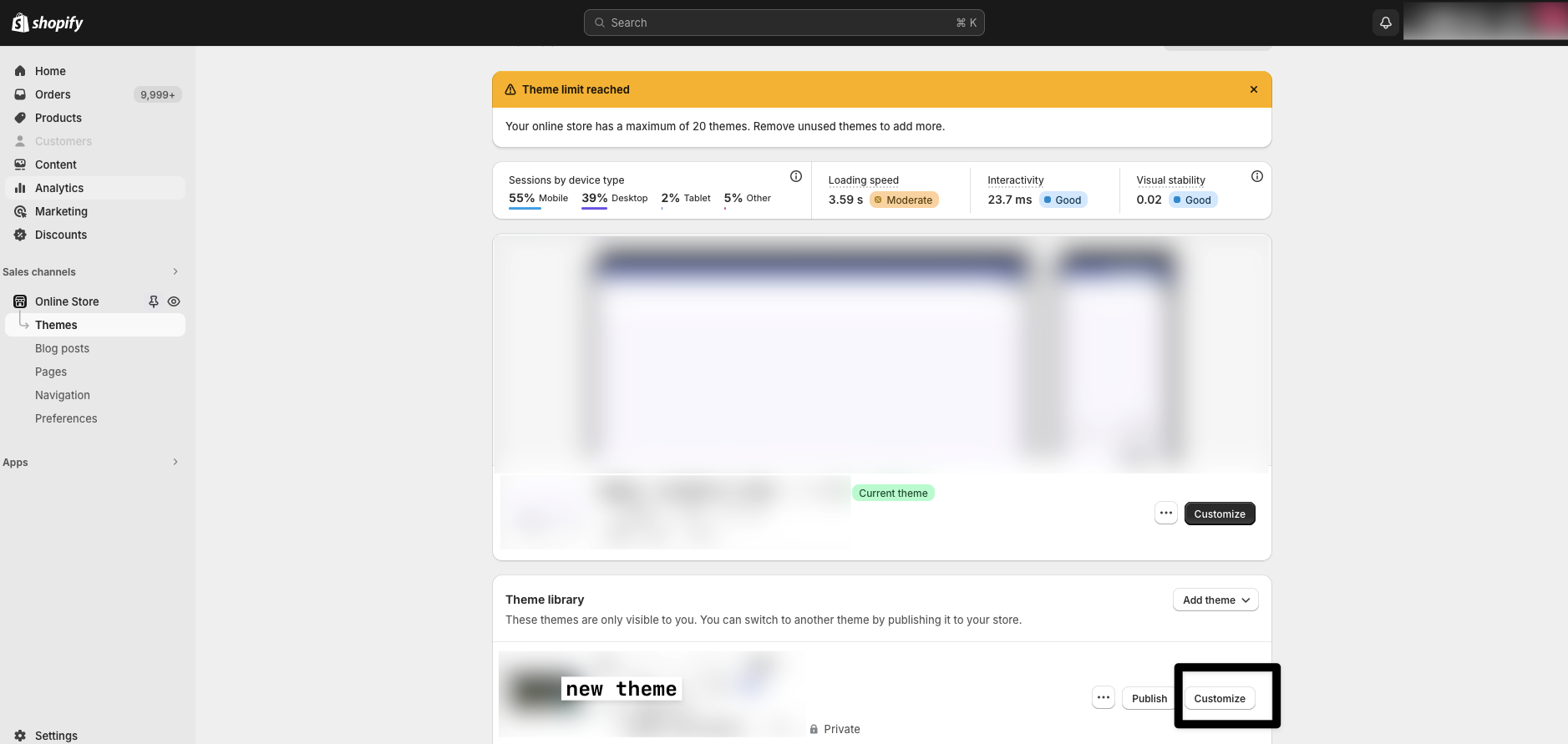
Building the homepage
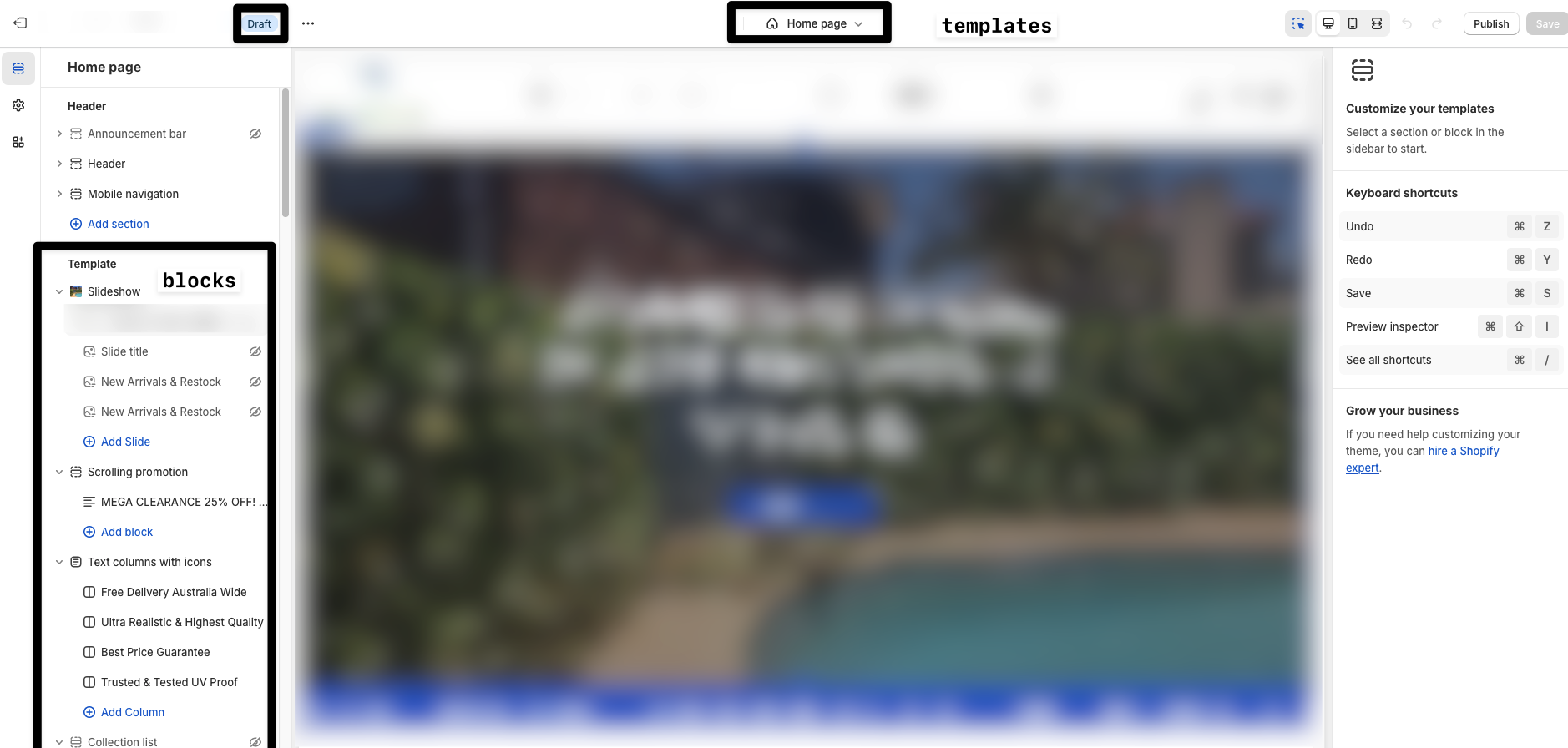
- You can see in the following screenshot:
- You are in draft mode
- You are editing the homepage template
- You have a list of blocks in the left hand side bar. Furthermore, you can add more blocks to the page (scroll down on the left block panel to find the “add new section”)
Changing templates
- In the top center of the above screenshot is a drop down to change templates.
- You can choose some existing templates such as
collectionandproducts - You can edit these templates in much the same way the homepage template
Creating a new page templates
- From the template dropdown list choose pages
- At the bottom of the pages template dropdown list is an option for creating a new page template
Why create a new page template
- If you need to build out a custom page layout (even if its only used for 1 page) you do this by creating a new page template.
- Creating a new page template gives you access to all your themes blocks
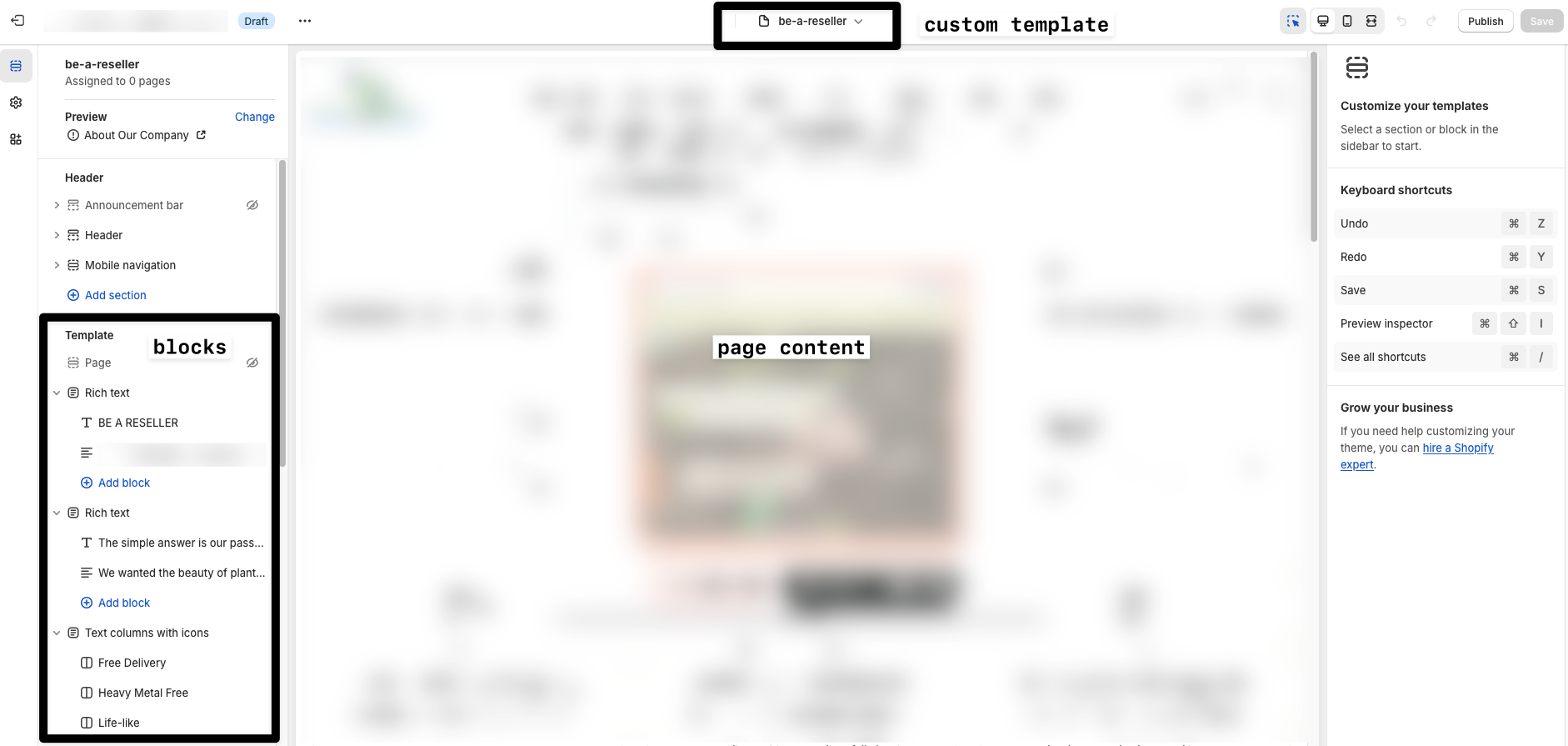
Preview a custom page template
- What you see in the preview window in the above screenshot is the only way to preview a template for a page that is not live
- The url of this page is sharable. just copy the url and share it
Create the pages for your custom template
If the pages are not created yet then you need to create them by going to online store and pages and add page.
- You can set the page as hidden
- You will not see your templates in the list of templates available on the right hand side until your theme is published.

Customising products
Some stores have hundreds of products so using the custom template method is not a viable option. For product customisation its best to use custom meta fields via settings / metafields / products
Should I use metafields or Customfields?
metafields vs custom templates in shopify
Publish your theme
- Once you have built all your custom page templates and corresponding pages the next step is to publish your theme.
- Go back to the main list of themes and hit publish on your new theme.
Assign your templates to the pages
- Now go into each individual page and assign the page template to each page respectively.

This post is licensed under CC BY 4.0 by the author.