Managing Custom Image Sizes in Drupal 11
Managing Images in Drupal
Drupal shines when it comes to managing images. Specifically around serving an appropriate size images to the user regardless of what size the image was originally loaded into the site.
Enable media embed modules
- swap out the default media icon module for the drupal embed media icon module
When you add images to the Text (formatted, long, with summary) you want to have a choice of image sizes for it to display at.
What image size do we need
- Wide
- Square
- Full landscape
- Portrait
- Enable the built in media modules
- Create styles
/admin/config/media/image-styles - Create view modes
/admin/structure/display-modes/view - Go to
/admin/structure/media/manage/image/display/and set your custom view mode to use your new image style
edit ckeditor
- edit your ckeditor mode
/admin/config/content/formats/ - choose basic html or whatever editor you enabled
- scroll down to
CKEditor 5 plugin settingsand choose media - enable
user can overide default view settings - scroll down to
embed media - enable the custom image sizes under
View modes selectable in the 'Edit media' dialog
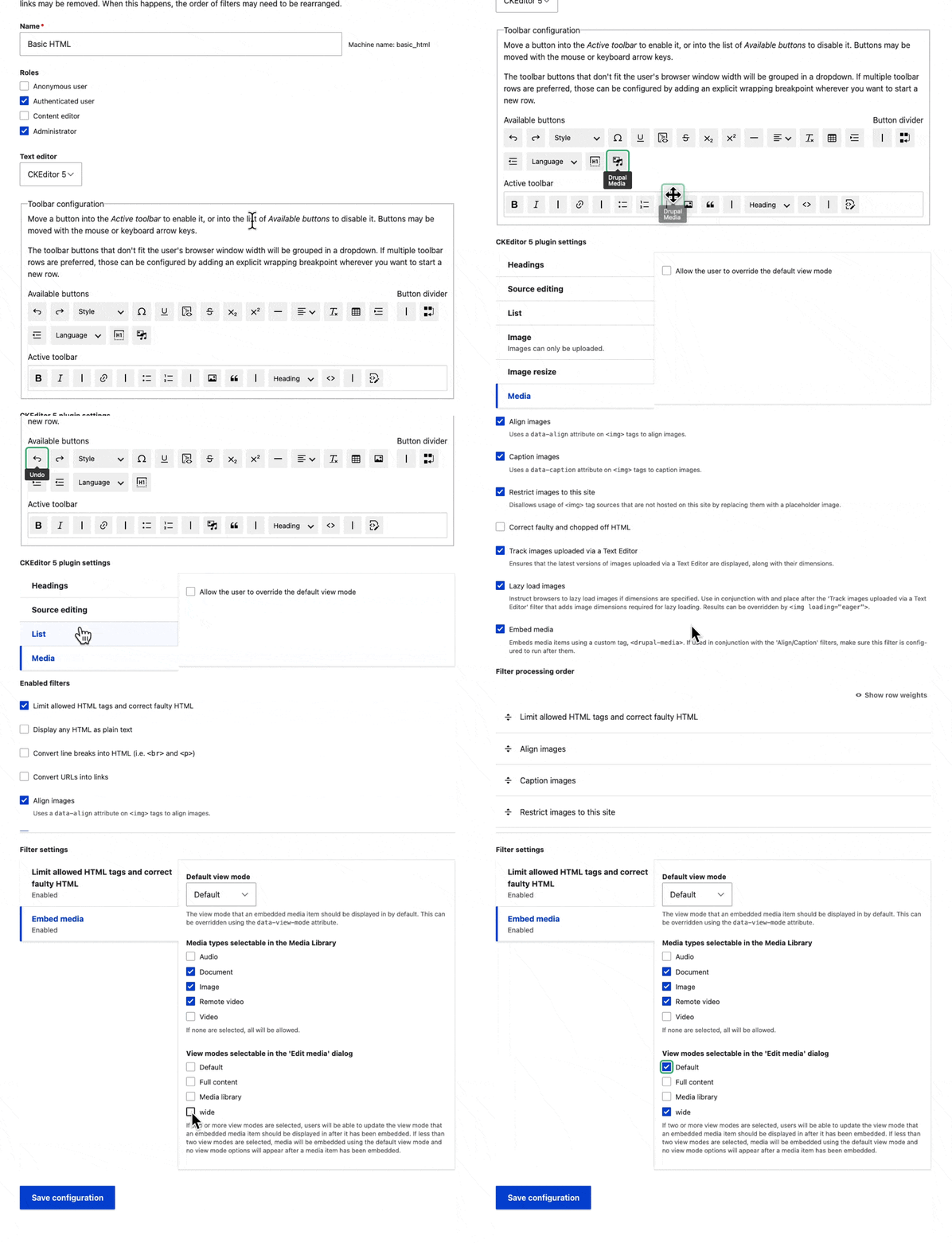
Setting custom image sizes
Best to implement image sizes at the start of the project
Its built into the core
- create your ideal image size
- In the
Manage Displayapply the custom image size by hitting thecog wheelto your image field on your paragraph block
/admin/config/media/image-styles
** Add in your style **
cropin which can set a custom size
This post is licensed under CC BY 4.0 by the author.